

AI Integration Quick Reference
AI Integration Quick Reference
- Requires: CometChat SDK and UI Kit both configured
- Implementation: Handle notification tap in
AppDelegateorSceneDelegate - Parse payload: Extract call session ID from notification payload
- Launch: Present
CometChatIncomingCallview controller - Related: Ringing · Push Notifications · UI Kit
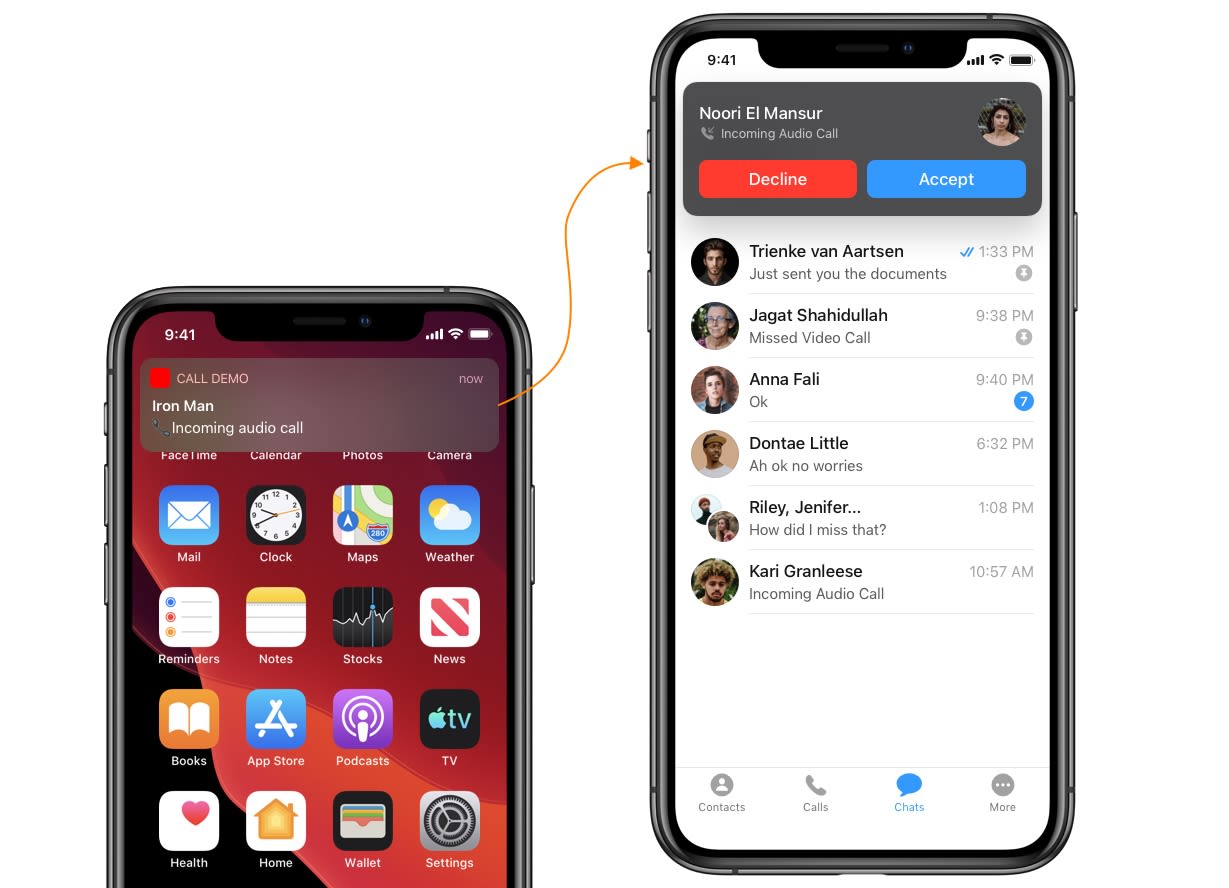
Step 1. Process push notification payload and grab Call object
To present an incoming call screen, you need a Call object. You can grab this from the push notification payload of the incoming call notification using CometChat.processMessage().
- Swift
Step 2. Launch call screen (Method 1)
You can directly launch the view controller from the app delegate once you receive the Call Object.- Swift
Step 2. Launch call screen (Method 2)
You can launch the call screen from your base view controller using NotificationCenter.- Fire a notification after you receive the Call Object.
- Pass the Call Object in the notification’s user info.
Trigger notification from App Delegate
- Swift
- Observe the notification in your base view controller.
Observe notification in Base View Controller
- Swift
Add selector method & Launch call screen
- Swift
Next Steps
Ringing / Default Calling
Set up default calling with ringing
Push Notifications
Set up push notifications for your iOS app
Launch Chat Window
Open chat window from push notification tap
UI Kit Overview
Pre-built UI components for iOS